If you’re collecting event registrations, payments, or course sign-ups in WordPress, it makes sense to give people something they can download right away. That might be a ticket, a receipt, or a certificate they can save or print right away after submitting your form.
The problem is that WordPress forms don’t generate PDFs by default. Many site owners end up exporting entries, pasting data into documents, and fixing layouts by hand.
That extra work adds up fast, increases the risk of mistakes, and becomes frustrating once submissions start coming in regularly.
In this guide, I’ll show you my tested method for automatically turning WordPress form entries into PDFs using WPForms. I’ll walk you through the setup step by step, so each person receives a clean, professional PDF immediately after submitting your form. 📄
TL;DR: To turn WordPress form entries into PDFs, install WPForms Pro and its PDF Addon, then connect a PDF template to your form so a new PDF is created automatically after each submission. You can also attach that PDF to your form notifications, so you (and the person who filled out the form) get a copy right away.
Why Automatically Generate PDFs From Form Entries? (Benefits + Use Cases)
Manually converting form entries to PDFs takes longer than it should. You have to export the entry, put it into a document, check that everything looks right, save it as a PDF, and then send it out. Doing this again and again slows you down, and it’s easy to make small mistakes along the way.
Automatically generating PDFs fixes that. Each form submission can instantly become a ready-to-send PDF without you needing to touch anything.
That means less busywork, fewer errors, and documents that always look clean and consistent. It also makes it easier to keep records, since everything is already saved in a clear format.
Here are a few common ways you can use automatic PDF generation from form entries:
| Website type | Example PDFs |
|---|---|
| Consulting/services | Quotes, proposals |
| Event websites | Tickets, registration confirmations |
| Online stores | Invoices, receipts |
| Online courses | Certificates, enrollments |
| Legal, HR, and admin | Consent forms, waivers, authorization letters |
| Real estate | Property details, book-a-viewing confirmations |
Overall, automatically generating PDFs helps you spend less time on admin work and more time running your website or business. All while giving visitors a faster and smoother experience.
With that in mind, here’s everything I’ll share in this guide:
Step 1: Install and Activate WPForms Pro
The first thing you need to do is install WPForms Pro on your WordPress site. I’ve been using WPForms for years, and it’s hands down the best WordPress form plugin I’ve tried out.
It comes with a powerful PDF addon that automatically generates PDFs from your form submissions. Plus, WPForms lets you create all kinds of forms, including contact, payment, survey, and newsletter registration forms.
We use WPForms at WPBeginner for our contact form, site migration request form, and our annual readers’ survey. See our detailed WPForms review for more insights into the plugin.
To get started, head over to the WPForms website, click the ‘Get WPForms Now’ button, and complete the registration process.
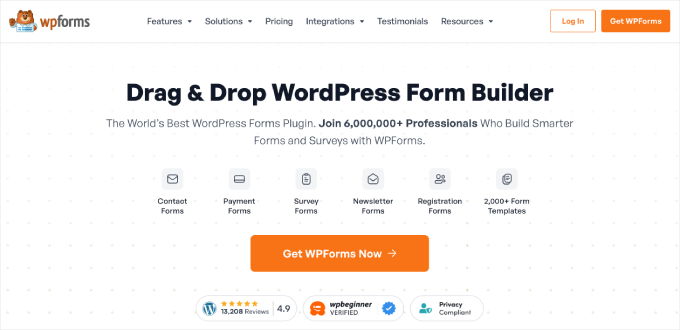
💡 Note: The PDF generation feature only works with WPForms Pro or higher plans. The WPForms Lite version doesn’t include this functionality, so you’ll need to upgrade if you’re currently using the free version.
Once you complete your purchase, you’ll have your own WPForms account dashboard, where you can download your plugin zip file and license key. You’ll need these in a moment, so you might want to keep this tab open or save them somewhere safe – like a password manager.
Now, it’s time to install the WPForms plugin on your WordPress site.
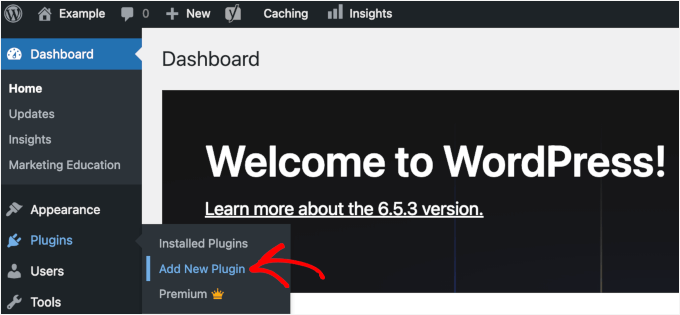
From your WordPress admin dashboard, go to Plugins » Add New Plugin.
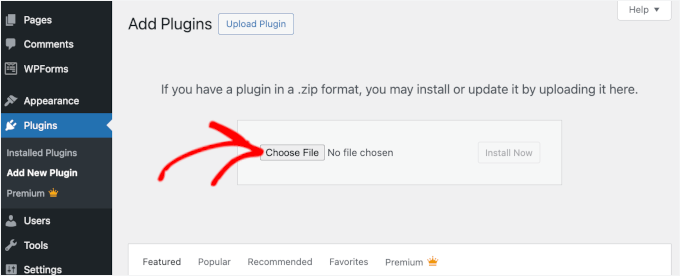
Click the ‘Upload Plugin’ button at the top of the page.
Choose the WPForms plugin file you just downloaded (a .zip file) and install it.
After installation finishes, click the ‘Activate Plugin’ button. WPForms will now appear in your admin dashboard.
You can then go to WPForms » Settings to activate your license key. Go ahead and paste the key into the box and click ‘Verify Key.’
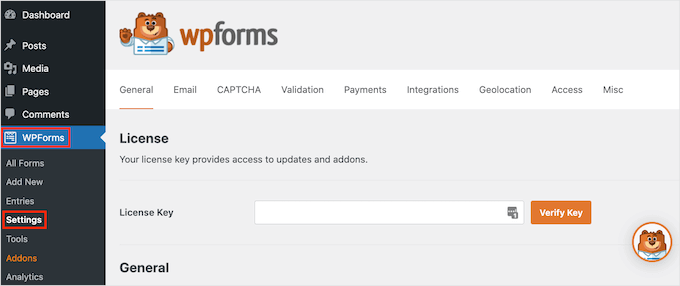
This activation step is important because it unlocks all the Pro features, including the PDF Addon we’ll be using. Once your key is verified, you’re ready to start creating WordPress forms that generate PDFs automatically.
If you need help, check out our guide on how to install a WordPress plugin.
After that, you can navigate to WPForms » Addons to install the PDF Addon.
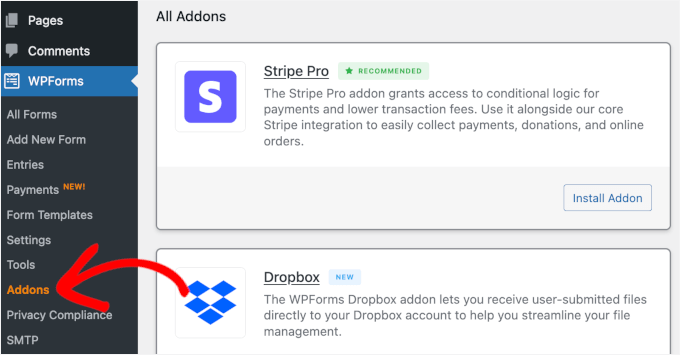
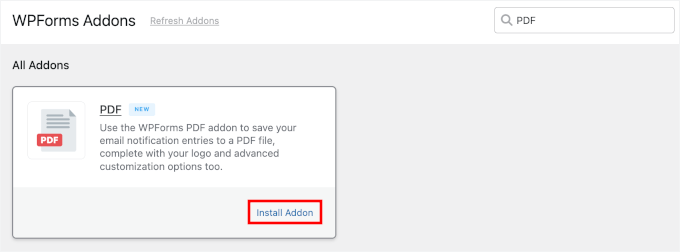
Inside the Addons panel, you can use the search bar to quickly find the PDF Addon.
In the search result, simply click the ‘Install Addon’ button to enable it.
Step 2: Create Your Form or Select an Existing One
Now that WPForms and PDF Addon are installed and activated, it’s time to create the form you’ll use for PDF generation.
In this tutorial, I’m going to create a simple terms of service form and set up an automated PDF for demonstration.
From your WordPress dashboard, go to WPForms » Add New.
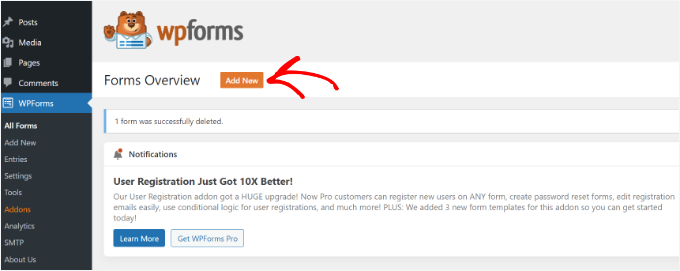
💡 Note: You can either build a new form from scratch or use one of your existing forms. If you want to edit a form, you can go to the ‘All Forms’ tab in WPFForms and click the ‘Edit’ button for the form you want to add automated PDF generation.
This opens the Setup page, where you can name your form.
This is for your reference only, but I recommend using a clear name for easier organization.

Next, choose how to build your form.
You can start from scratch, use the AI form builder, or pick a template.
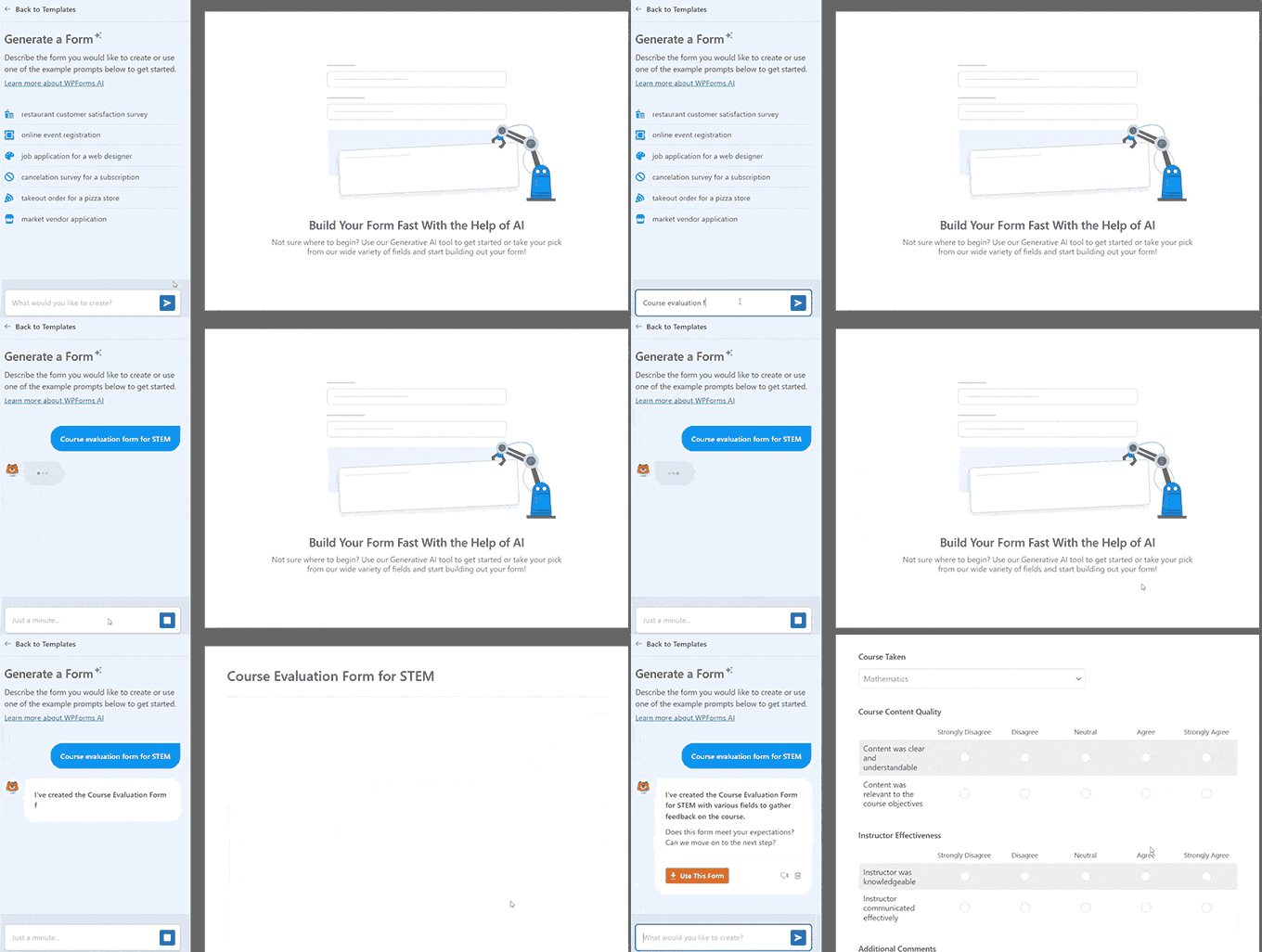
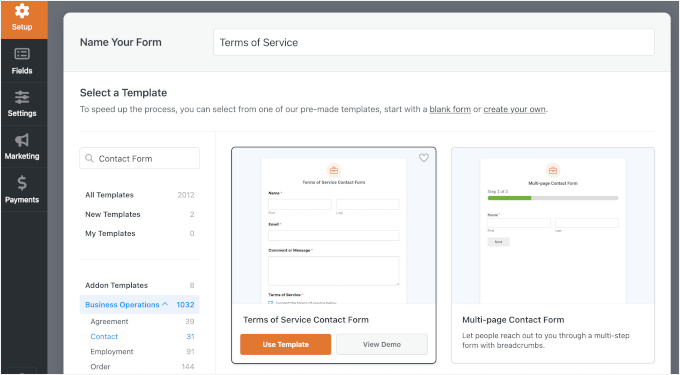
For demonstration, I’ll show you how to do it using a pre-made form template.
In the search bar, you can type in keywords, such as “Contact Form,” “Receipt,” “Agreement,” or anything that fits your needs, to quickly find the perfect template.
When you find the form template you like, hover over it and click the ‘Use Template’ button. For demonstration, I’m going to choose the Terms of Service Form template.
WPForms will then open the form builder interface.
The Terms of Service form template comes preloaded with fields such as date, receipt number, order details, payer name, and payment information.
You can take a moment to look at the form builder interface. On the left side, you’ll see all the available form fields you can add. The right panel shows the actual fields in your form.
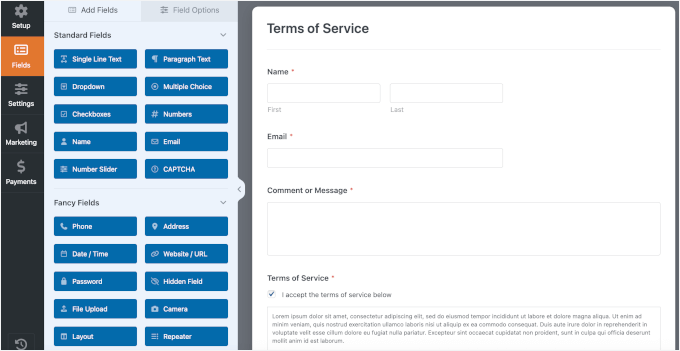
To customize this form, click on any field in the right panel to edit it.
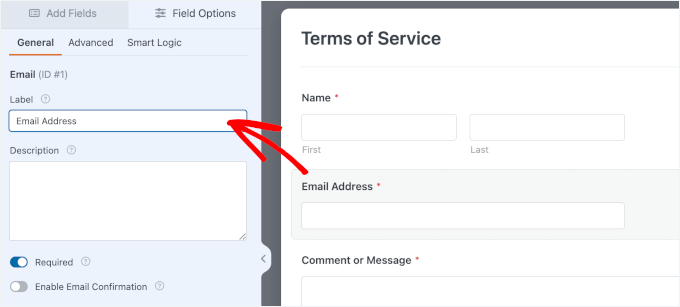
For example, if you want to change the Email label to Email Address, just click that field and type the new label in the settings panel on the right. You can also make fields required or optional, add a short description, and change their order by dragging them up or down.
If you need to add more fields, like a dropdown for additional options or a file upload field for supporting documents, simply drag them from the left panel into your form.
Since we want this to be a signed legal document, make sure to drag the Signature field into your form as well.
From here, you can continue tweaking this form template to fit your needs.
One thing that you want to do for sure is to edit the sample text for your Terms of Service checkbox. Simply click on the field and rewrite the text in ‘Description.’
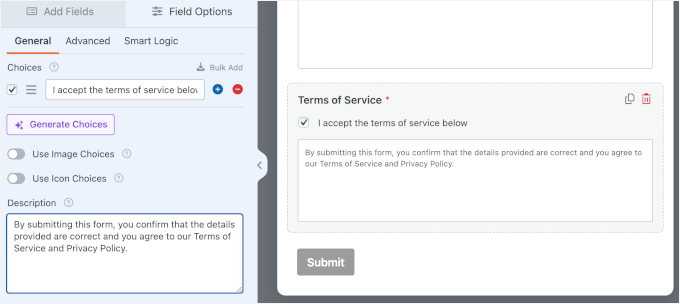
Once your form looks exactly how you want it, you’re ready to configure your form settings.
Step 3: Set Up Form Notifications and Confirmations (Optional)
Before we set up the automated PDF generation, it’s a good idea to quickly check the Notifications and Confirmations settings. Do note that this step is optional, but it ensures that both you and your users receive the right follow-up after form submission.
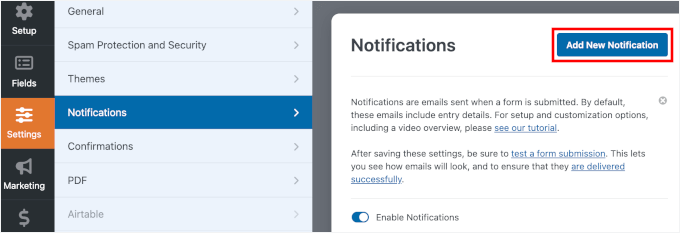
By default, form notifications are sent to the site admin. If you also want to send a copy of the PDF to the user, you can add another notification for that.
To do this, open Settings » Notifications, and click ‘Add New Notification.’
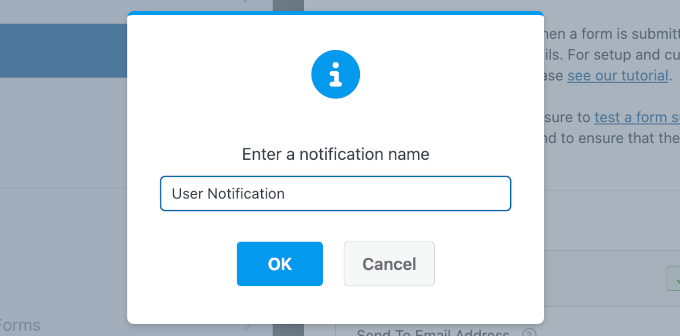
In the popup, give your notification a name.
For example, “Send PDF to User” or “User Notification,” and click ‘OK.’
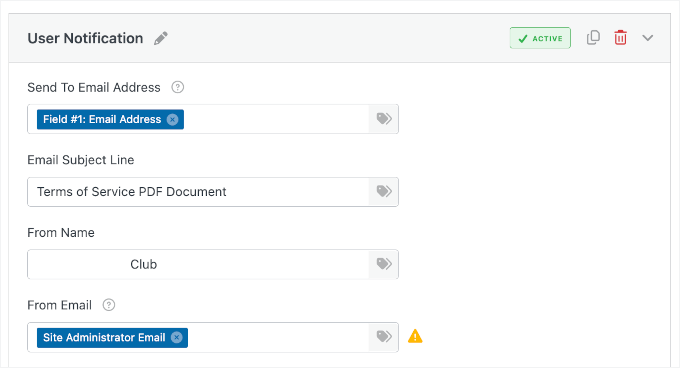
In the Send To Email Address field, you’ll want to use a Smart Tag so the email is sent to the person who submitted the form. Click the Smart Tag icon at the end of the field and select the Email field from your form.
If your form needs to notify multiple people, you can go ahead and add multiple email addresses, separated by commas.
Next, you can fill in the Email Subject, From Name, and From Email fields. You can use Smart Tags here, too, if you want to automatically personalize the message or include form details.
After that, you can scroll down to the ‘Email Message’ field.
By default, WPForms has included the {all_fields} smart tag, but you can add more content to make sure your notification email looks good.
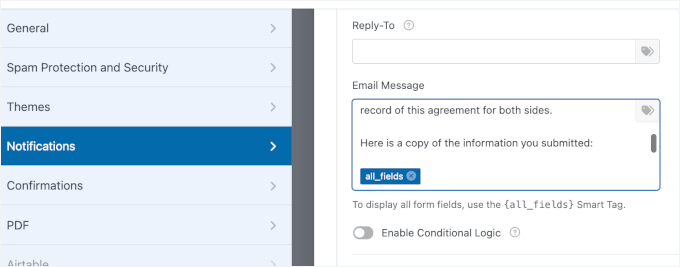
While you’re here, click over to the Settings » Confirmations tab as well.
WPForms offers three types of confirmations: a message, a redirect, or sending users to a specific URL.
In this tutorial, I’m using the ‘Message’ confirmation because I want to keep users on the same page after they submit the form. Once that’s set, you’re done with this step.
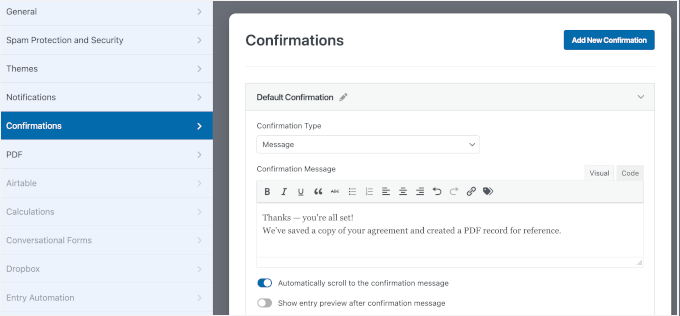
Other than a confirmation message, you can redirect users to another web page or a completely different site.
For more information, you can see our guide on how to redirect users after form submission.
Step 4: Configure the PDF Settings
With your form built, it’s time to set up the PDF generation. In this step, you’ll configure WPForms to automatically create a professional PDF every time someone submits your form.
To start, look at the left sidebar under ‘Settings’ in the form builder and switch to the ‘PDF’ tab. Then, click the ‘Add New PDF’ button.
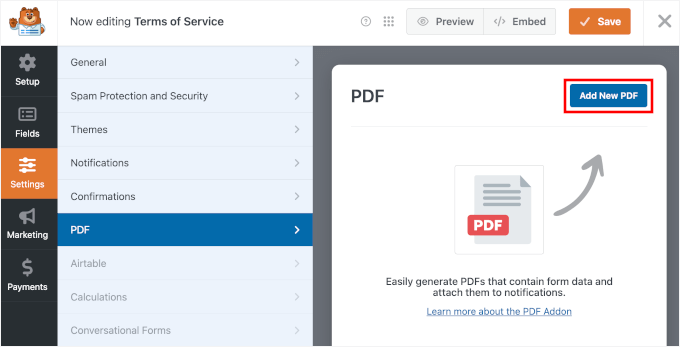
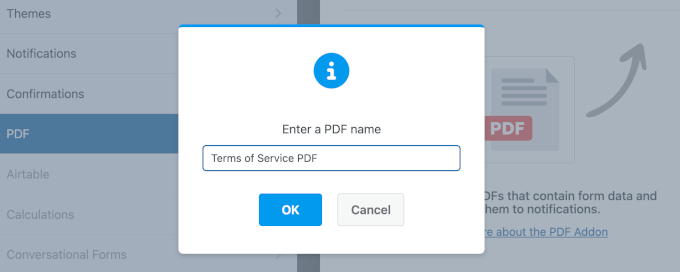
A popup window will appear asking you to name your PDF.
Go ahead and add a descriptive name that makes sense for your records. You can always change this later if needed, so don’t stress too much about getting it perfect right now.
Click ‘OK’ to continue.
With your PDF configuration enabled, WPForms will show you several important settings.
The first thing you’ll see is the ‘File Name’ field. By default, WPForms uses the “Entry for {form-name}” format as the PDF filename, but you can customize this.
I personally like to include smart tags here to make each PDF unique. For example, you could use something like {form_name}-{entry_id}, which would create files named “Terms-of-Service-123.pdf.”
Using the Entry ID is highly recommended for record-keeping. It ensures every file has a unique name, making it much easier to organize your folders and find specific agreements later without opening every single file.
To use a smart tag, you can click the ‘Smart Tags’ icon to the right of the field and choose from the available options in the dropdown.
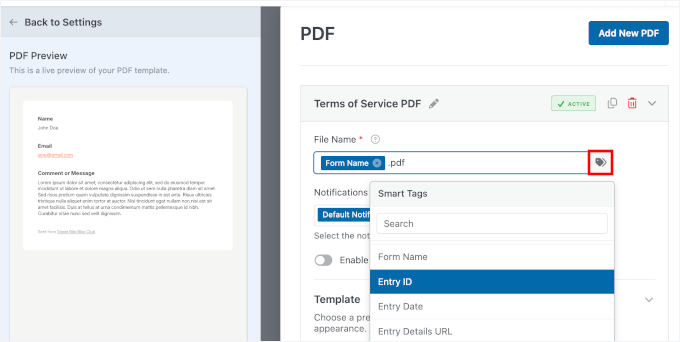
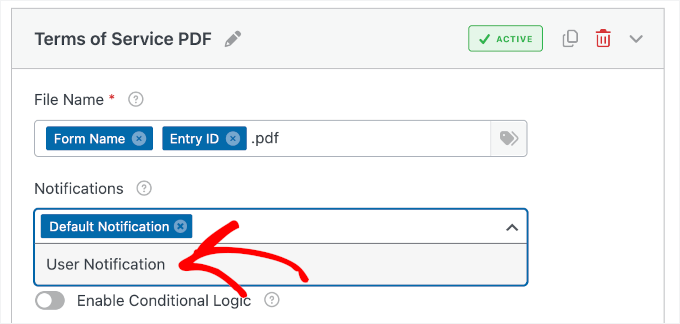
Right below that, you’ll see the Email Notifications dropdown. This is where you decide which email notifications should include the PDF as an attachment.
If you want to send the PDF to yourself, select ‘Default Notification.’ If you want users to receive a copy, select ‘User Notification.’ You can even select both options if you want everyone to get a copy.
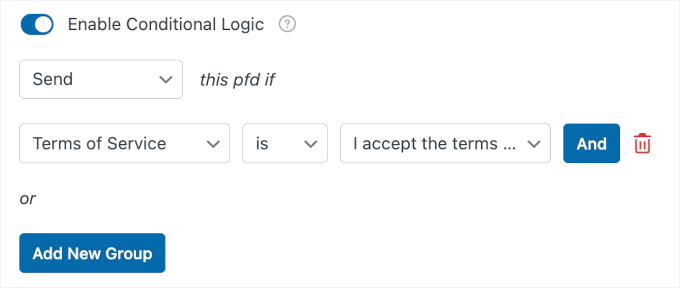
Right below that, you’ll see a conditional logic option. This powerful feature lets you control when PDFs are generated.
For example, maybe you only want to create a PDF if someone checks the “I agree to terms” checkbox.
Next, you’ll choose your PDF template. WPForms offers dozens of professionally designed templates organized into categories.
You’ll see options for Notifications, Documents, Financial forms, and Certificates. Since we’re working with a legal document, click the ‘Documents’ category.
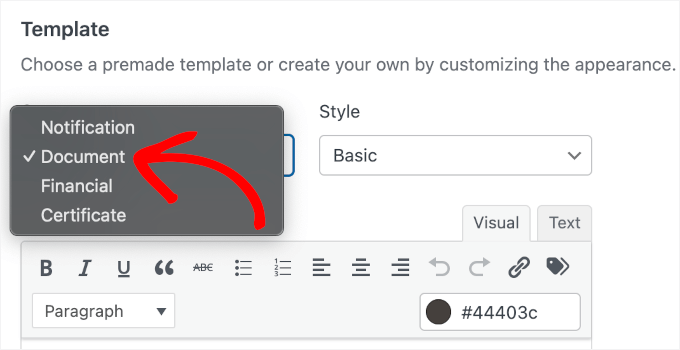
🧑💻 Pro Tip: Choose the category that best fits your use case. For example, use ‘Financial Forms’ for invoices or payment records, and ‘Certificates’ for things like online course completion or attendance certificates.
You can then browse through the available templates by clicking on each one. You’ll see a live preview appear on the left side of your screen showing exactly how your PDF will look.
For my form, I’m selecting the ‘Legal’ style.
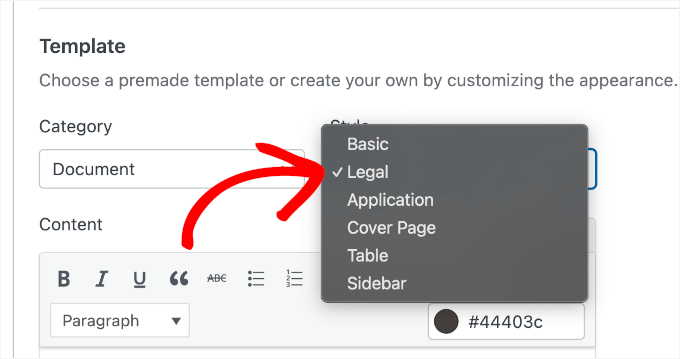
Once you’ve chosen a template and style, it’s automatically applied to your PDF. You’ll notice the preview updates immediately to show your form fields populated in the template layout.
It has a clean, professional look with a formal layout that’s perfect for contracts. The template features a header section for your logo, clearly organized content sections, and a footer with page numbers.
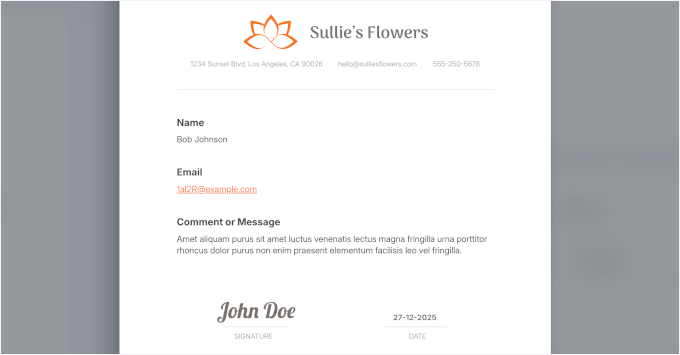
At this point, your basic PDF settings are configured. In the next step, we’ll customize the content and design to make sure it looks exactly what you want in the final PDF.
Step 5: Customize and Style Your PDF
Now that you’ve selected a template, it’s time to customize the PDF. This is where you’ll replace placeholder text, adjust your form fields, and add any extra content you want to include in the final document.
Then, I’ll show you how to make your PDF more on-brand with a custom design.
Step 5.1: Personalize the PDF Content
On the left side of the screen, you’ll see a live PDF preview. The Legal template includes editable placeholders like “Business Address,” “Signature Type,” and “Date.” You can click directly on any of this text in the preview to edit it.
Let’s start with the Content section.
The template already includes all the form fields, but you can add a short explanation to provide context.
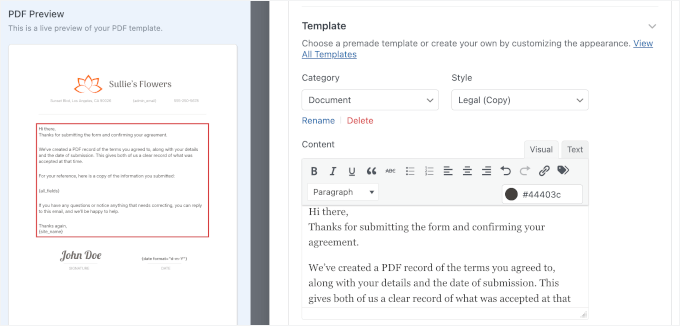
The editor works like a simple word processor. You can format text, add bullet points, insert headings, and include links to make everything clear and easy to read.
Also, you can paste in your actual legal text, such as your full terms of service or contract language.
Plus, you can use Smart Tags to pull the information dynamically from your form submissions. Using Smart Tags means every PDF will be personalized with the correct information without you doing anything manually.
🧑💻 Pro Tip: You might want to add any disclaimers or additional information your users might need. For legal documents, you could include contact information, effective dates, and instructions for next steps.
Next, you can work on the placeholders with your business contact details, such as your address, email, and phone number. You can also use Smart Tags here.
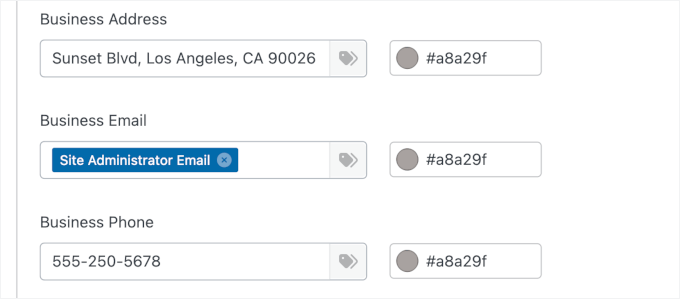
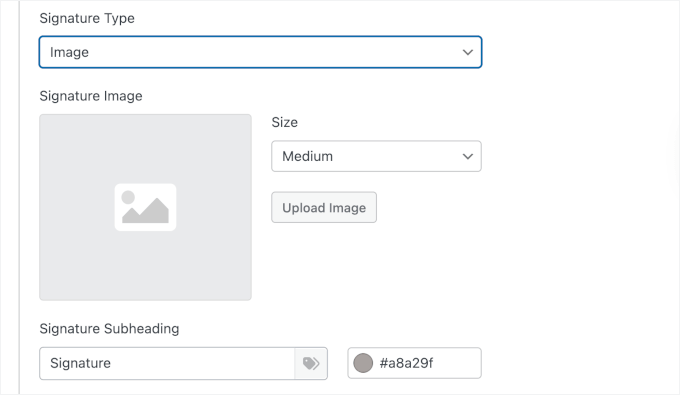
Now, scroll down to find the signature settings.
Here, you can configure how the signature appears. Since we added a Signature field to the form in Step 2, WPForms will automatically pull the form user’s eSignature into this area. You can adjust the size and the heading to ensure it looks official.
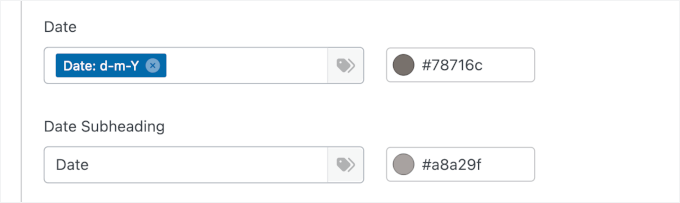
Next, there are the Date fields.
Go ahead and choose your date format, as well as write the subheading.
From here, take some time to review each section.
Make sure all your form fields are included and that they’re arranged in a logical order. You want the final PDF to be easy to read and understand.
Step 5.2: Customize the PDF Design
With your content in place, it’s time to make your PDF look on-brand. In this step, you’ll customize colors, add your logo, and adjust the overall design to match your business identity.
Let’s scroll down to ‘Appearance’ in the PDF settings panel to choose a pre-designed theme. Each theme has its own color scheme and styling. Alternatively, you can edit the theme colors.
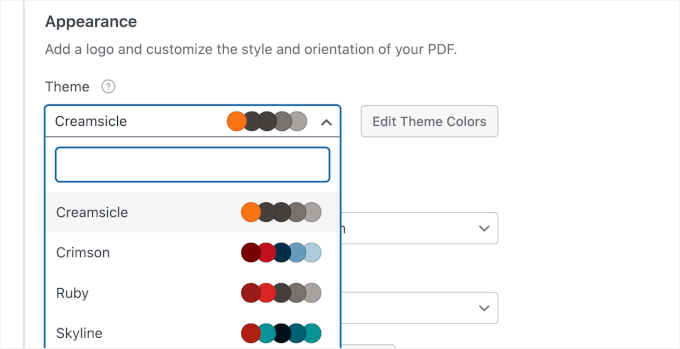
I like to scroll through a few options to find the one that best matches my brand. The preview on the left updates instantly, so you can see how these themes affect your PDF design.
Once you’ve picked a theme, it’s time to add your custom logo.
If you don’t see the ‘Upload’ button, click the ‘Remove Image’ button to remove the current logo placeholder.

After that, you can choose your logo file from your computer. WPForms accepts popular image formats like PNG and JPG. Your logo will then appear in the PDF preview.
You can then adjust the logo size – small, medium, or large. You can also position your logo on the left or center. I usually center mine for legal documents because it creates a more formal, balanced appearance.
All these small design touches add up to create a document that looks professionally designed. Your colors match your brand, your logo is prominently displayed, and the overall layout looks clean and organized.
Step 6: Adjust Advanced PDF Settings
Before we test your PDF, there are a few technical settings you should configure. These advanced options give you control over the document format, security, and who can access your PDFs.
Click to expand the ‘Advanced’ tab by the end of the PDF settings panel.
The first setting you’ll see is Paper Size. Available sizes include Letter (8.5″ x 11″), A4, Legal, and more. The default is Letter, which works great for most business documents in the United States.
If you’re working with international clients or have formatting requirements, you can select A4 or another size from the dropdown.
Right next to that, you’ll find the ‘Orientation’ setting. You can choose between Portrait (vertical) and Landscape (horizontal) layouts.

Portrait is the format for most documents, and that’s what I’m using here. Landscape orientation works better if you have wide tables or charts that need more horizontal space.
Now let’s talk about security. You can click to turn on ‘Access Restrictions.’
This is one of my favorite features because it lets you control exactly who can view and download your PDFs. By default, PDFs are accessible to any visitor, but you can lock them down using several options.

If you choose the “Logged-in Users” option, only logged-in WordPress users will be able to access the PDF. This is useful if you’re creating documents for members of your website or employees in your organization.
For extra security, WPForms also lets you password-protect your PDFs.
You can use this feature by enabling the ‘Password Protection option.’ Then simply enter a password that users need to open the document, and re-enter it to confirm.
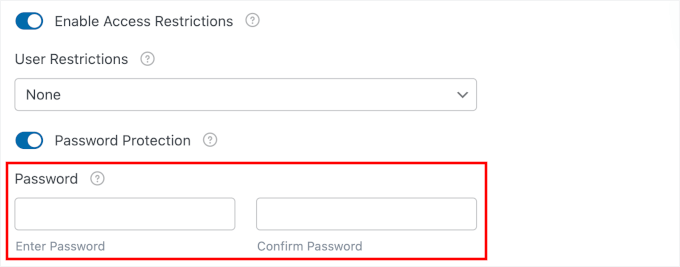
This is perfect for sensitive legal agreements or financial documents.
🧑💻 Pro Tip: One thing to keep in mind with password protection – you’ll need to communicate the password to your users somehow. I usually include it in a follow-up email to keep things secure.
Once you’ve configured everything to match your requirements, it’s time to test your PDF generator form.
Step 7: Test Your PDF Generation
Before you publish your form and start collecting real submissions, you need to make sure everything works correctly. Testing your PDF generation is a critical step that I never skip, and you shouldn’t either.
The good news is that WPForms makes testing easy with its built-in preview feature. Look at the top right corner of the form builder and click the ‘Preview’ button.
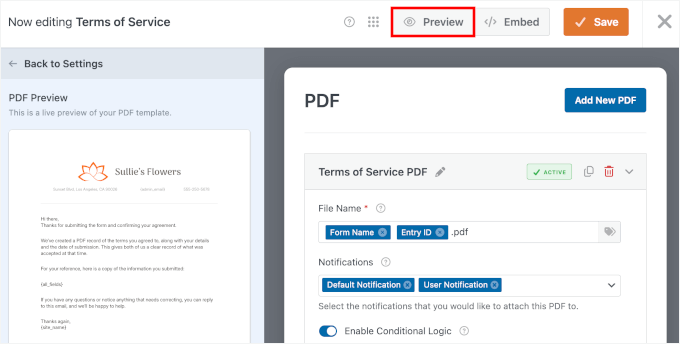
This opens your form in a new tab exactly as your users will see it. Now you can fill it out just like a real submission and see if the PDF generates correctly.
Go ahead and fill in all the form fields with test information. For the Legal Documents form, I skipped the name field and wrote a typo in the email field to check validation.
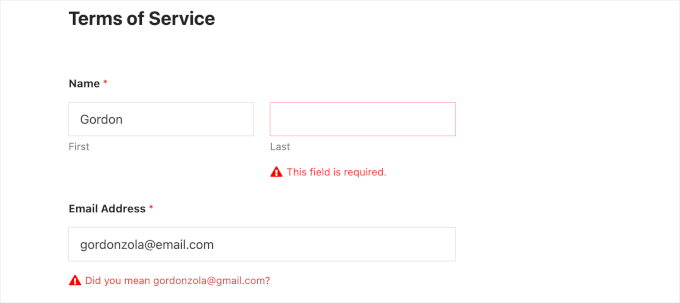
Now, let’s make sure to check the ‘I agree to terms’ checkbox and click the ‘Submit’ button at the bottom of the form.
After submitting, you’ll see a confirmation message for your form.

Now let’s check if the PDF was created properly.
Go back to your WordPress dashboard and navigate to WPForms » Entries.
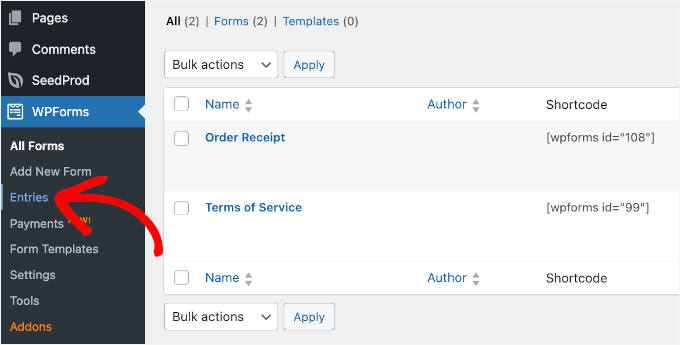
You should see your test submission listed on the next screen.
Click on the ‘View’ button in the ‘Actions’ column to see all the details.
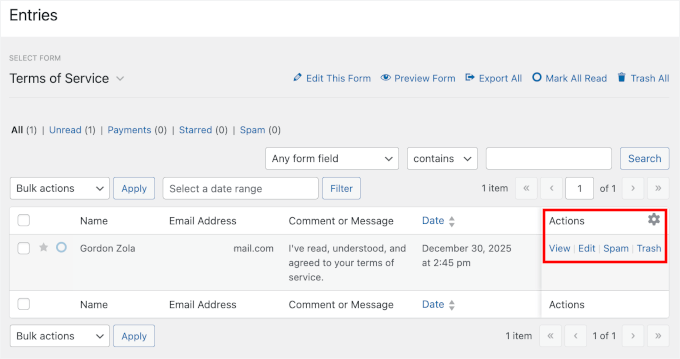
On the entry details page, look for the PDF section – it should display your configured PDF link.
You can simply click on that link to open your generated PDF.

The PDF will open in a new browser tab or download to your computer, depending on your browser settings.
Take a good look at it and check everything carefully:
- Make sure all your form information appears correctly in the PDF. Your test name, email address, and company details should be exactly where you placed them in the template.
- Check that the smart tags pulled in the right information. Scroll through the entire document and verify that nothing is cut off or formatting looks weird.
- Pay attention to your logo – does it appear at the right size and in the right position? Are your brand colors showing up correctly?
- Is the text readable and properly formatted with the headings, bullet points, and styling you added?
This step matters because it affects how professional your document looks.

Now, let’s test delivery if you configured notifications to include the PDF.
You should have received an email with the PDF attached. Open that email and verify that the PDF attachment is there and opens correctly.
If you don’t see the email immediately, be sure to check your spam or junk folder, as emails with attachments can sometimes trigger spam filters.
💡Note: If you’re not receiving test emails, your website may have email delivery issues. I recommend using WP Mail SMTP to fix it. This plugin ensures your form notifications and PDF attachments actually reach their destination.
Step 8: Embed Your Form in WordPress
Now, it’s time to publish your form and add it to your WordPress website so people can actually use it.
In the form builder, click the ‘Save’ button first to ensure all your changes are saved. This is important because you don’t want to lose any of the customizations you just made.
Once your form is saved, click the ‘Embed’ button right next to it.
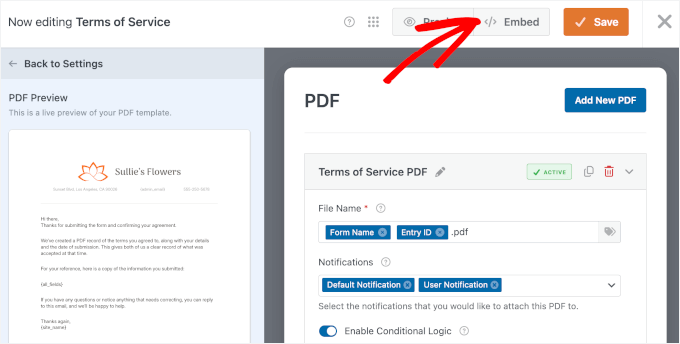
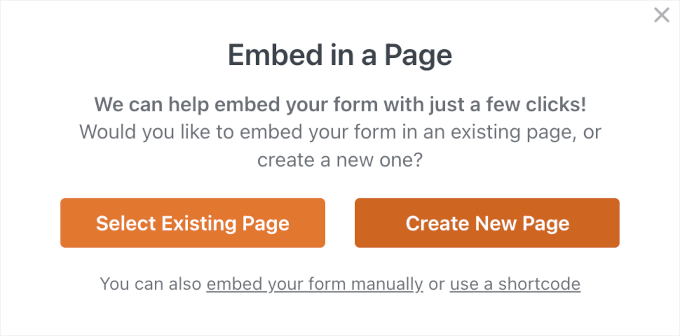
WPForms will show you a popup with a few options for adding your form to your post or page.
The easiest method is to embed it on a new page, so feel free to click the ‘Create New Page’ option in the popup window.
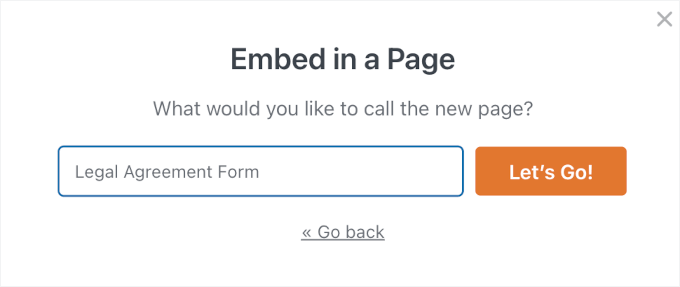
In the next popup, go ahead and name your new page.
For my form, I’m calling it “Legal Agreement Form” – you can name yours whatever makes sense for your website.
After entering the page name, click the ‘Let’s Go!’ button.
WPForms automatically creates a new WordPress page and embeds your form on it.
The page opens in the WordPress block editor so you can see exactly how it looks. Your form is already there, ready to go.
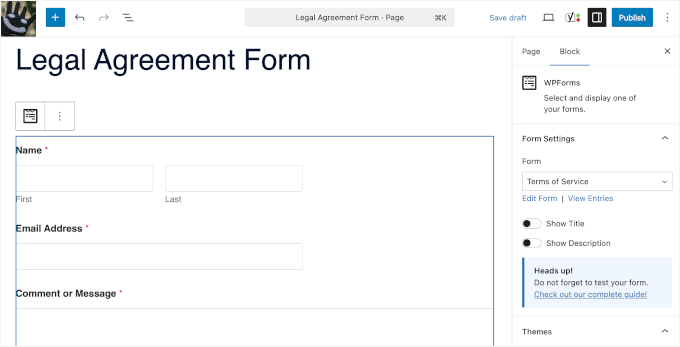
You can add additional content around the form if you want.
Maybe you need to include instructions above the form explaining how to fill it out. Or perhaps you want to add some introductory text about what the legal document covers. Just click above or below the form block and start typing.

You can also choose a theme in the ‘Form Settings’ on the right to style your form.
If you prefer to add the form to an existing page instead, that’s easy too. Navigate to any page on your site and open it in the editor.
You can also use the shortcode method if you’re more comfortable with that. Every WPForms form has a unique shortcode that you can copy and paste anywhere.
For more information, see our guide on how to embed WordPress forms.
Before you publish the page, click the ‘Preview’ button to see how everything looks on the front end of your website. Make sure the form displays correctly and fits well with your page layout.
Check that it’s mobile-friendly too – click the mobile preview icon to see how it looks on phones and tablets. WPForms automatically optimizes forms for mobile devices, but it’s always good to double-check.
If everything looks perfect, go ahead and click the ‘Publish’ button. Your form is now live on your WordPress website!
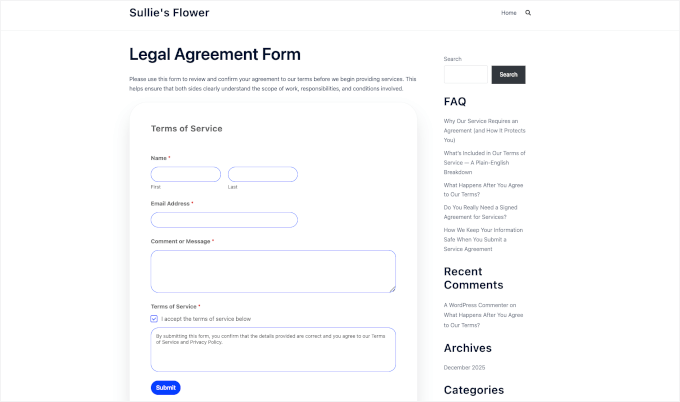
From now on, whenever someone submits your form, WPForms will automatically generate a professional PDF. Then, it will handle it according to the settings you configured.
You can always go back and make changes to your form or PDF settings later. Just navigate to WPForms » All Forms, find your form, and click ‘Edit.’ Any changes you make will apply to all future submissions.
FAQs About PDFs and Forms in WordPress
Here are some of the most common questions we get about generating PDFs from WordPress forms:
How do I export form entries in WordPress?
If you’re using WPForms, go to WPForms » Entries in your WordPress dashboard and select the form you want to export. You can download all submissions as a CSV or Excel file. You can then open that file in Excel, Google Sheets, or any spreadsheet program.
Which WordPress form plugin can generate PDF files?
WPForms is the best WordPress form plugin for generating PDF files. Its PDF Addon includes 40+ professionally designed templates, design customization options, and the ability to automatically email PDFs to users and site admins.
How can I create a downloadable PDF in WordPress?
You can create a PDF on your computer, upload it to your WordPress Media Library, and embed it into your site so visitors can download it. You can even sell your PDF downloads by setting them up as digital products using Easy Digital Downloads.
How do I embed a PDF in WordPress?
The easiest way is to use WordPress’s built-in File block. Add the block to your page, upload your PDF, and WordPress will display it inline with a download option. If you need extra features like zoom, page navigation, or a better reading experience, use a PDF viewer plugin.
Additional Resources for Using Forms in WordPress
I hope this article has helped you learn how to automatically generate PDFs from form entries in WordPress.
Next, you might want to check out our other WordPress guides on:
If you liked this article, then please subscribe to our YouTube Channel for WordPress video tutorials. You can also find us on Twitter and Facebook.




![Ledger Wallet Q&A [+ Massive DEAL]](https://vmcloud.com.au/wp-content/uploads/2025/08/ledger-wallet-qa-massive-deal.jpg)