Getting traffic to your WooCommerce store can be tough when your product pages don’t show up in Google.
Plenty of store owners sell great products but still miss out on search traffic because their pages aren’t properly optimized.
Often, the issue isn’t the product. It’s the way the product page is set up for SEO.
Small details like weak titles, thin descriptions, or missing schema can hold a page back from ranking, even when the product itself is solid.
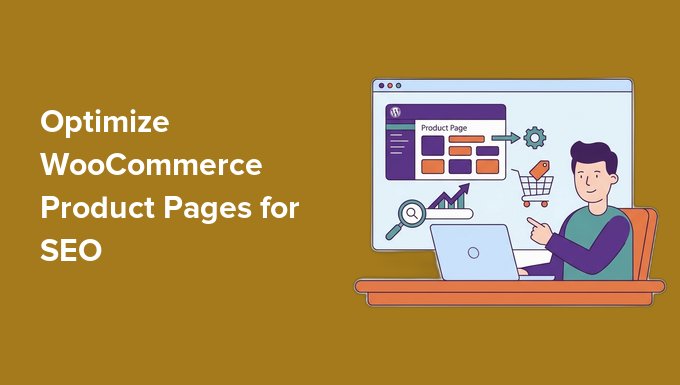
In this guide, I’ll walk you through how to optimize WooCommerce product pages step by step.
I’ll show you how to improve titles, descriptions, images, and SEO settings so your products have a better chance of ranking and bringing in consistent traffic.
💡Quick Answer: How Do You Optimize WooCommerce Product Pages for SEO?
To optimize your WooCommerce product pages, you need to improve key areas like titles, descriptions, images, and schema. This helps your products rank higher in Google and attract more customers.
Using an SEO plugin like AIOSEO makes it easy to manage these settings without any code.
Why Is WooCommerce Product Page SEO Important?
WooCommerce product page SEO is important because most product pages don’t rank in search results, which means those online stores miss out on free, high-intent traffic.
I’ve seen product pages struggle to rank simply because they use thin or duplicate descriptions, have poorly optimized titles, or are missing key SEO metadata.
When you fix these issues, your product pages have a much better chance of:
- Showing up in Google for buying-intent keywords
- Bringing in consistent, free traffic without relying on ads
- Unlocking rich snippets like price, reviews, and ratings that help your listings stand out in search results
Unlike blog posts, product pages target people who are already close to making a purchase. That’s why even small SEO improvements can directly impact your sales.
💡 Expert Tip: If you’re not sure how your product pages are performing, the best way to find out is by using Google Analytics to track traffic and conversions.
I recommend MonsterInsights for this. It connects your WooCommerce store with Google Analytics and lets you view your most important eCommerce data directly inside WordPress.
To get started, follow our guide on tracking WooCommerce conversions.
Now, let’s look at my expert tips to improve your product pages SEO. You can also use the links below to jump to a specific tip:
Step 1: Set Up WooCommerce SEO the Right Way
Before you start optimizing individual product pages, it’s important to set up your SEO foundation correctly. This helps ensure that everything you do later actually has an impact.
The easiest way to do this is by using All in One SEO. It’s the best WordPress SEO plugin on the market that gives you full control over how your WooCommerce store appears in search engines.
We use AIOSEO at WPBeginner to improve our rankings, and it has helped us achieve steady, long-term growth in search traffic.
If you want a deeper look at its features, you can check out our full AIOSEO review.
First, you need to install and activate AIOSEO on your WordPress site. If you’re not sure how to do this, follow our step-by-step guide on installing a WordPress plugin.
While AIOSEO has a free version, the WooCommerce SEO module and automatic product schema we’ll use in this guide come with its paid plans. You can sign up for the AIOSEO plan that best fits your store.
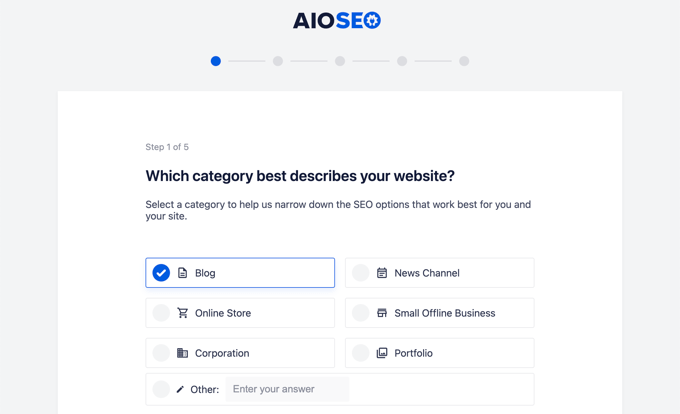
Once activated, run the setup wizard. It will guide you through the basic SEO configuration step by step, so you don’t miss anything important.
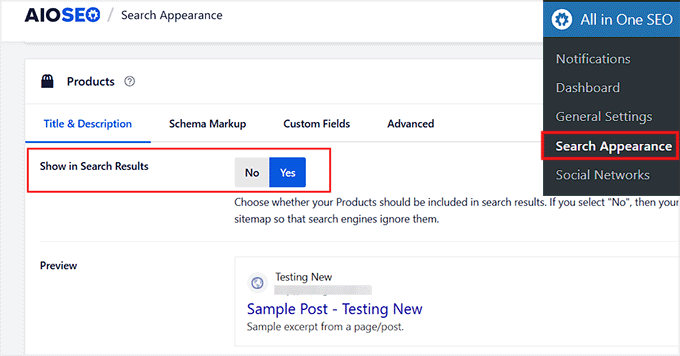
After that, enable the WooCommerce SEO features by going to the All in One SEO » Search Appearance » Content Types page. Then, switch the ‘Show in Search Results’ option in the ‘Products’ section to ‘Yes.’
This unlocks specific optimizations for product pages, product categories, and other store-related content.
Once everything is set up, you’ll notice that your product SEO settings are now available directly inside the WordPress editor when you open a product page.
This is where you can control things like SEO titles, meta descriptions, and other search appearance settings.
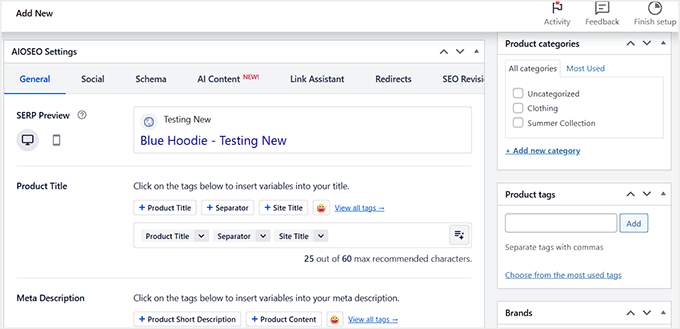
By default, WooCommerce gives you very basic SEO options. But with a proper setup, you get much more control over how your product pages appear in Google.
For detailed instructions on setting up your store’s SEO foundation, please see our guide on WooCommerce SEO.
Step 2: Write SEO-Friendly Product Titles
Your product title is one of the most important SEO elements on your WooCommerce page. It helps Google understand what you’re selling and also influences whether users click on your listing in search results.
A simple formula you can follow is:
Primary Keyword + Key Feature + Modifier
For example, instead of a basic title like: “Running Shoes”
You can improve it to something like: “Lightweight Running Shoes for Men – Breathable & Durable”
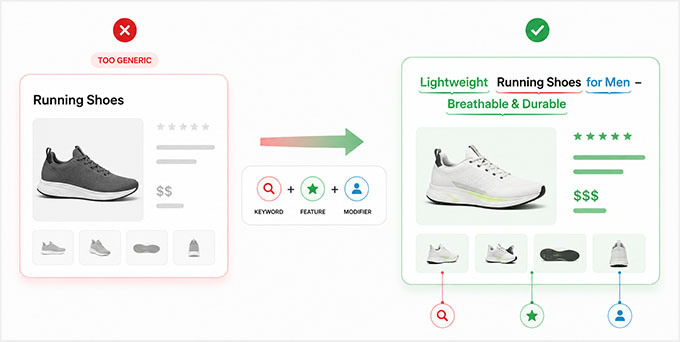
The second version is descriptive, includes keywords naturally, and gives users a reason to click.
How to Find Product Keywords
Before writing your title, you need to know what keywords your customers are searching for. You can find these by:
- Using Google’s Autocomplete: Start typing your product name into Google and see what suggestions appear. These are common search terms.
- Checking Competitor Pages: Look at the titles and descriptions of top-ranking competitor products for keyword ideas.
- Using a Free Keyword Tool: Tools like WPBeginner Keyword Generator can help you find search terms related to your product and see how many people are searching for them.
For more information, see our guide on doing keyword research.
How to Optimize Your Product Title in WooCommerce
You can edit your product title inside the WooCommerce product editor at the top of the page.
This is your main product name, and it usually appears on your site as the product heading.
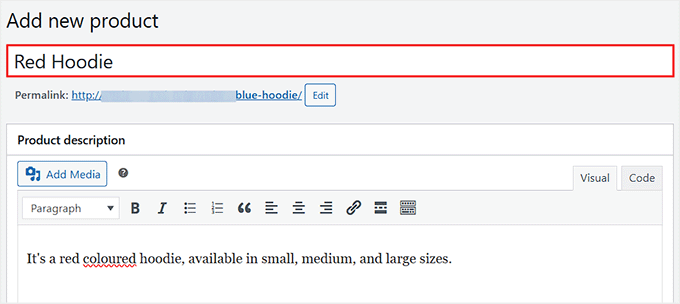
However, this is not the only title that matters for SEO.
If you’re using AIOSEO, you’ll also see a separate SEO title field inside the ‘AIOSEO Settings’ box below the product editor.
This is the title that search engines may use in results, and it gives you more control over how your product appears in Google.
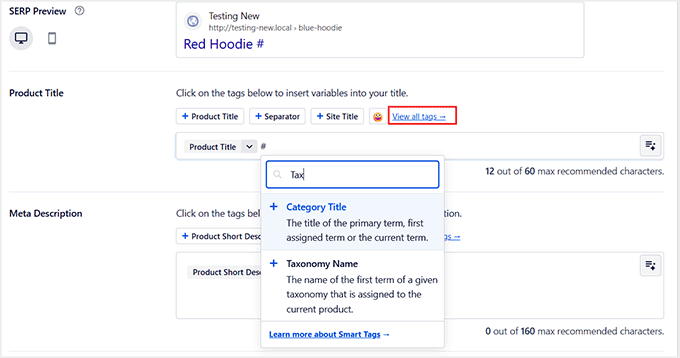
Instead of relying only on your default WooCommerce product title, AIOSEO lets you fully customize your SEO title using smart tags, dynamic attributes, and even AI suggestions.
To optimize it properly, scroll down to the ‘AIOSEO Settings’ section. Then, click on ‘View All Tags’ above the ‘Product Title’ field to explore available smart tags.
Next, look for a relevant smart tag like ‘Product Category’ and select it. This allows you to automatically include the product’s category in your SEO title, making it more descriptive and search-friendly.
You can also include different types of product details such as:
- Brand
- Price or sale information
- SKU
Among these, brand and product category tend to perform best because they closely match how people search on Google when they’re ready to buy.
To make this even easier, AIOSEO includes an AI title generator. Simply click the star icon in the ‘Product Title’ field.
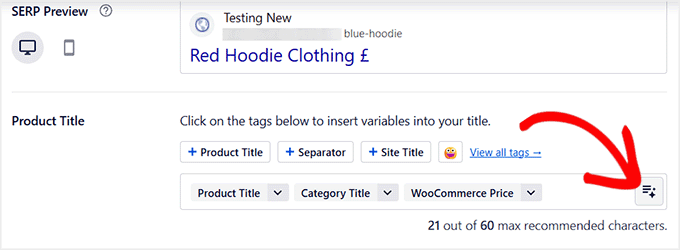
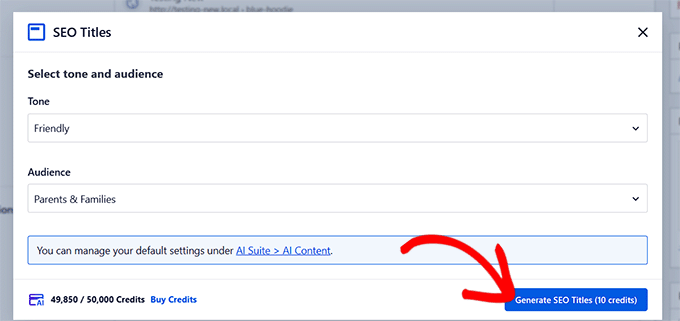
This will open a prompt where you can choose your tone and target audience, and then click ‘Generate SEO Title.’
AIOSEO will use your existing product title and description to understand what your product is about and generate optimized title suggestions based on that context.
Expert Tips for Writing Better Product Titles
A few simple patterns work well when it comes to writing product titles in WooCommerce.
These aren’t complicated tricks, but small adjustments that can make a big difference in how your products perform in search results.
| Tip | Why It Helps |
|---|---|
| Put your main keyword first. | Google usually cuts off the SEO title around 50 to 60 characters, so the buying-intent term should appear before that cut-off. |
| Lead with the detail that sets the product apart. | The brand, model, or a key spec works better near the front than buried at the end, where it can get cut off. |
| Use the exact words shoppers search for. | “running shoes for men” matches real searches far better than “men’s footwear”. |
| Skip ALL CAPS, extra symbols, and keyword stuffing. | These look spammy and can lower your click-through rates, and stuffing breaks Google’s spam policies. |
Optimize Your Product URL (Slug)
Your product URL, also called the slug, is another small detail that affects SEO. A short, readable slug with your main keyword in it helps both Google and shoppers understand the page before they even click.
When you add a product, WooCommerce creates a slug from the title automatically. You can edit it from the ‘Permalink’ link that appears just under the product title in the editor.
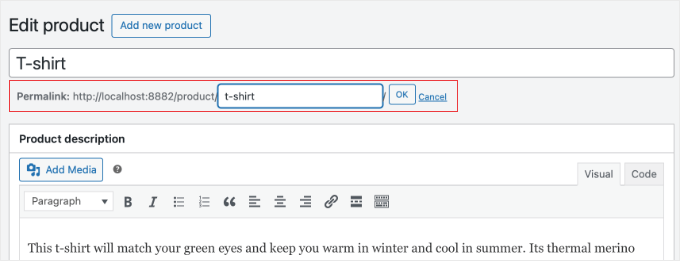
Keep it short and drop filler words, dates, and any auto-generated clutter like random numbers or SKUs.
A slug like /product/p-12345/ tells search engines nothing, while /product/blue-running-shoes-men/ matches what people actually search for.
📍Note: If a product is already published and indexed, then changing its slug changes its URL. Set up a 301 redirect from the old URL to the new one so you don’t lose rankings or send visitors to a broken page. AIOSEO’s Redirection Manager (a paid feature) can handle this for you.
Step 3: Optimize Your Product Descriptions for Search
Once your product titles are set up, the next thing to focus on is your product descriptions.
Your descriptions play a big role in helping search engines understand your product, and they also help convince customers to buy once they land on your page.
Before you start writing, it’s important to understand how WooCommerce structures product descriptions.
There are two main areas:
- The short description, which appears near the top of the product page. This is where you give a quick summary of the product in a few lines.
- The long description, which appears further down the page. This is where you add detailed information and SEO content.
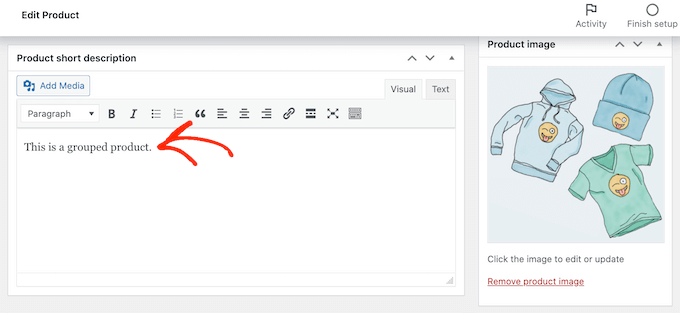
Now that you understand the structure, let’s look at how to actually write and organize your product descriptions for better SEO.
How to Structure Your Product Description
A well-optimized product description doesn’t need to be complicated. In fact, following a simple structure usually works best for both SEO and readability.
Here’s a proven flow you can use:
- Start with a benefit-led opening line. Lead with what the product does for the buyer, not just what it is.
- List the key features and specs. Cover the details a shopper checks before buying, like size, materials, or what’s included.
- Explain who it’s for. Name the use cases or the type of customer, so the right buyer knows they’re in the right place.
- Add social proof or a guarantee. A short line about reviews, ratings, or a return policy helps build trust.
- End with a clear call to action. Tell the shopper exactly what to do next, like ‘Add to Cart’ or ‘Choose your size’.
Once your structure is in place, the next step is making sure your descriptions are actually optimized for scale, especially if you manage multiple products.
💡My Recommendation: Use AI for Product Descriptions
If you’re running a WooCommerce store with even a small number of products, then writing and updating descriptions manually can quickly become time-consuming.
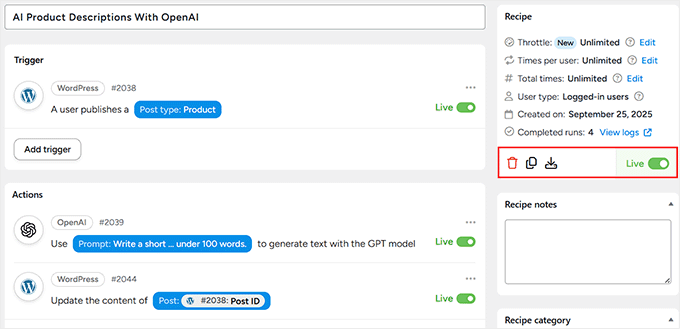
This is where AI tools can really help speed things up while keeping your content consistent. One of the best options for this is Uncanny Automator.
It’s a powerful WordPress automation plugin that connects your WooCommerce store with OpenAI. This means you can automatically generate product descriptions whenever you add new products.
It’s especially useful for larger stores because it removes the need for repetitive manual writing and can save you a lot of time.
Just keep in mind that the free version includes a limited, one-time batch of credits for connected apps like OpenAI, so ongoing automatic generation will need a paid Uncanny Automator plan.
If you’re just getting started or running a smaller store, then StoreAgent is a great alternative.
It’s an all-in-one AI tool built specifically for WooCommerce, and its content feature lets you generate product descriptions with just one click.
The main difference is that StoreAgent generates descriptions on demand rather than automatically: you can run it on a single product or in bulk across many products, but it won’t fire on its own when you add a new product the way Uncanny Automator does. It’s very beginner-friendly and easy to use.
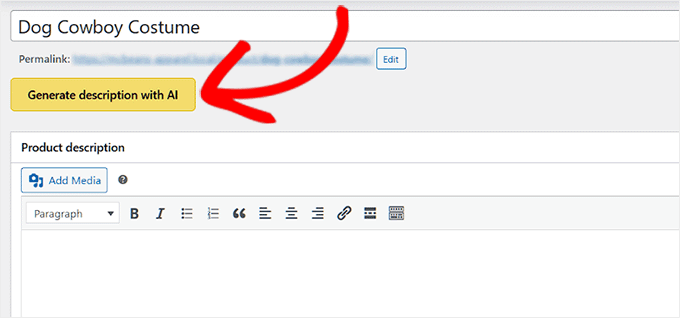
For step-by-step instructions, I suggest taking a look at our tutorial on auto-generating product descriptions in WooCommerce with AI.
Step 4: Add Product Schema (Rich Snippets)
Now that your product content is properly optimized, the next step is to help search engines understand your product in more detail. This is where product schema markup becomes important.
Product schema is like a behind-the-scenes cheat sheet that tells search engines exactly what your product is.
It gives Google extra context, allowing it to display additional information directly in search results, such as price, availability, ratings, and even SKU details.
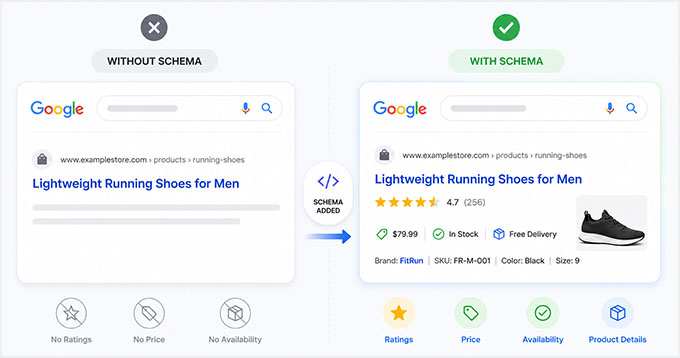
How to Add Product Schema in AIOSEO
AIOSEO automatically adds product schema for WooCommerce products. However, you can customize it to make your listings even more detailed.
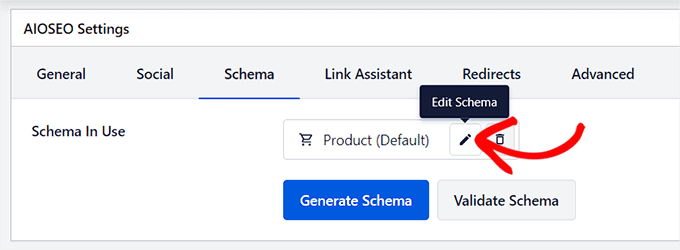
To do this, open your product in the WooCommerce editor and scroll down to the ‘AIOSEO Settings’ box. Then switch to the ‘Schema’ tab.
Here, you’ll see the existing Product Schema already applied. You can click the pencil icon to edit it and add additional details that help Google better understand your product.
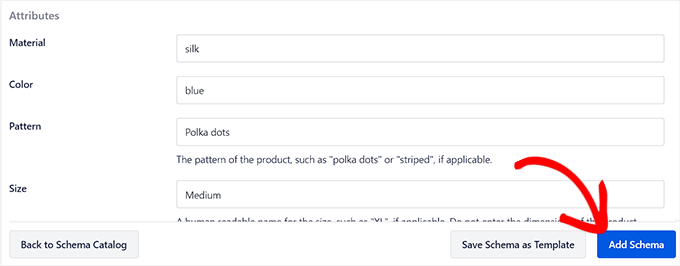
You can include extra product identifiers such as:
| Field | What It Means / How to Use It |
|---|---|
| GTIN | A global product identifier (very useful for Google Shopping and product recognition) |
| MPN | Manufacturer Part Number used to uniquely identify a product |
| ISBN | Used only for books and publications |
| Material | The main material the product is made from (e.g. cotton, leather, plastic) |
| Color | The product’s color (helps improve search relevance and filters) |
| Pattern | The design pattern, such as polka dots or striped (if applicable) |
| Size | Use labels like S, M, L, XL instead of physical dimensions |
| EU Energy Rating | Energy efficiency rating (mainly for appliances and electronics) |
| Audience Details | Includes gender, minimum age, or maximum age when relevant |
I strongly recommend filling in as many of these fields as possible, especially GTIN, brand-related identifiers, and key product attributes.
They help improve product visibility and accuracy in search results.
You can also add separate schema types for FAQs and product reviews if you’ve included them in your product page. To do this, click the ‘Generate Schema’ button inside AIOSEO.
This opens the schema generator.
From here, you can add FAQ schema for any product-related questions you’ve already answered in your description, and Review schema if your product pages feature genuine customer reviews.
A couple of things to keep in mind: Google now shows FAQ rich results mainly for government and health sites, so a store usually won’t get the expandable FAQ snippet. And it only displays review stars for authentic customer reviews, not testimonials you write or collect yourself.
But the schema still helps search engines understand your page, so it’s a good idea to add it.
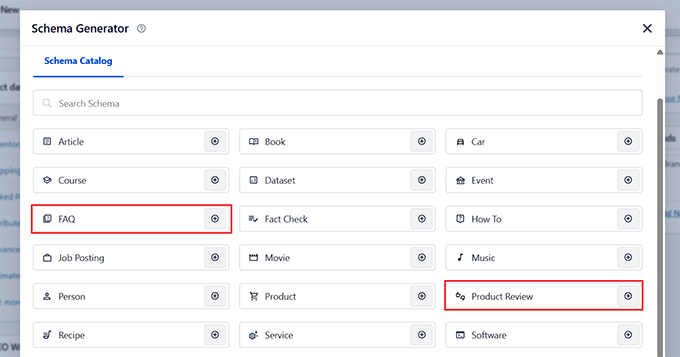
Adding these extra schema types helps your product qualify for richer search results in Google, which can make your listings more noticeable and improve click-through rates.
For more detailed instructions, I suggest checking out these guides:
How to Test Your Product Schema
Once your schema is set up, it’s a good idea to test it to make sure everything is working correctly. You can do this using Google’s Rich Results Test tool.
Simply enter your product page URL, and it will show you whether your schema is valid and if your product is eligible for rich results.
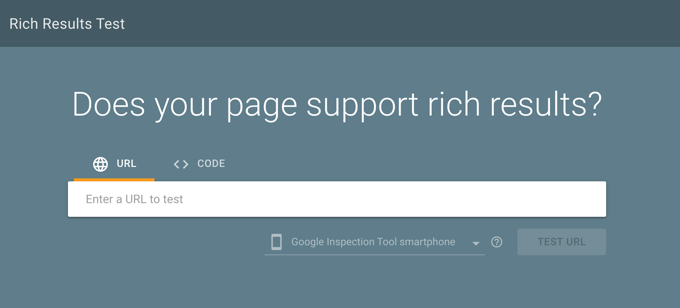
If there are any issues, the tool will also highlight what you need to fix. You can then use these insights to troubleshoot, review the affected schema fields, and make the necessary corrections.
After making the corrections, you can re-test the page to confirm it’s eligible for rich results.
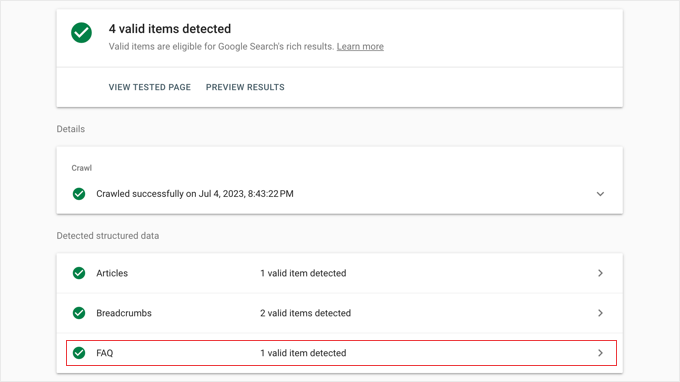
📍Note: It may take some time for Google to re-crawl your page and recognize the new schema. If you don’t see the changes immediately, try clearing your site’s cache before testing again.
Step 5: Optimize Product Images for SEO
Unoptimized images can quietly hurt your WooCommerce SEO without you even noticing.
Large file sizes slow down your pages, generic filenames don’t help search engines understand your content, and missing alt text means you’re missing out on extra ranking opportunities, especially in Google Images.
Properly optimized images, on the other hand, can improve page speed, boost accessibility, and even bring in additional traffic from image search results.
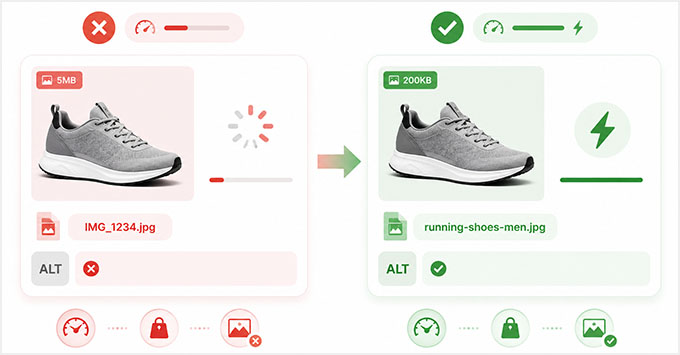
Product Image SEO Checklist
Before you even upload product images to WooCommerce, it’s important to optimize them properly.
At WPBeginner, our team follows a simple image optimization process that has helped our site load faster, rank better in Google Images, and improve the user experience for our readers.
Here’s the exact approach I recommend when optimizing product images:
- Rename Image Files Before Uploading Them: Instead of leaving default names like IMG1234.jpg, use clear, descriptive filenames that reflect the product. For example, blue-running-shoes-men.jpg. This helps search engines understand the image context better.
- Choose the Right Image Format (PNG vs JPEG): JPEG is best for product photos because it offers good quality with smaller file sizes. PNG is better when you need transparency or sharper graphics. Choosing the right format helps balance quality and performance.
- Compress Images Before Uploading: Large images can slow down your store. For a quick one-off fix, a tool like TinyPNG compresses images without noticeable quality loss. If you’d rather not compress every image by hand, then a plugin like Envira CDN can automatically optimize your product images and serve them from a fast global network as your pages load. Either way, try to keep each product image file size under 100 KB.
- Keep Image Dimensions Consistent Across Your Store: Using the same image size for all products creates a clean, professional layout and prevents layout shifts that can affect user experience.
- Add Descriptive Alt Text for Every Product Image: Alt text should briefly and accurately describe what’s shown in the image. For example, ‘Blue running shoes for men on white background.‘ This improves SEO, helps with image indexing in Google, and also supports accessibility for screen readers.
For a full step-by-step breakdown, check our guide on how to optimize images for SEO in WordPress.
After image optimization, you can upload and manage them properly inside WooCommerce.
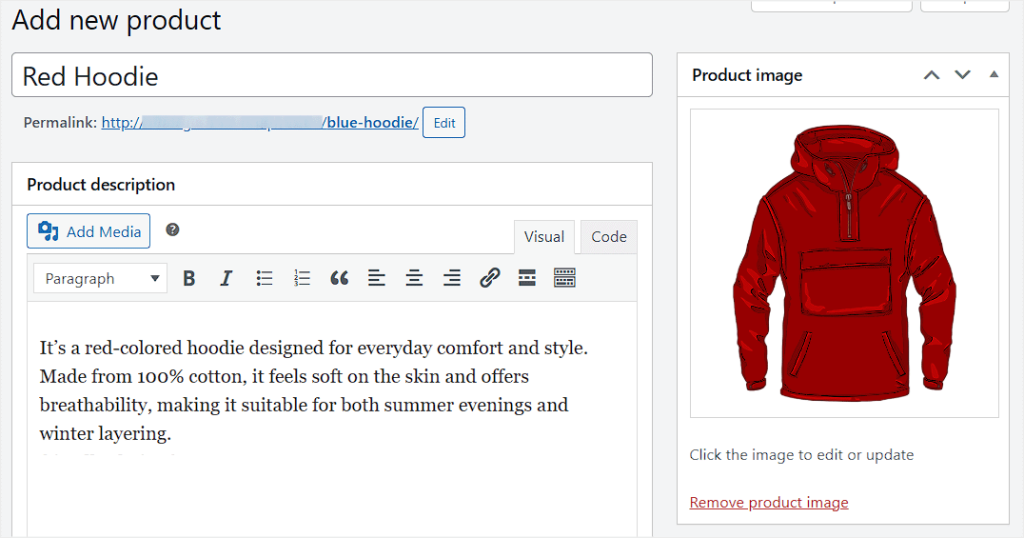
If you’re not sure how to do that, I recommend looking at the following tutorials:
Step 6: Improve Category & Tag SEO in WooCommerce
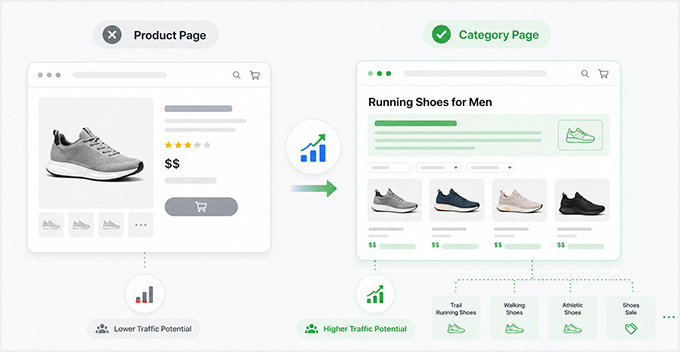
Store owners often ignore WooCommerce categories and tags, but they can be a powerful source of organic traffic when you optimize them properly.
In many cases, category pages can rank more easily than individual product pages because they target broader, high-intent search terms.
To take advantage of this, you need to make sure your category pages are not just empty listings of products. They should also include useful SEO content that explains what the page is about.
How to Optimize WooCommerce Categories for SEO
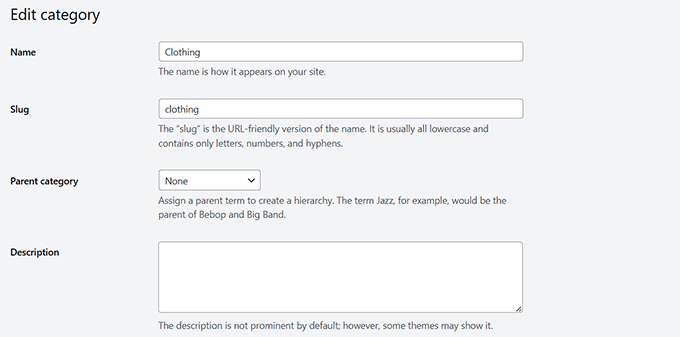
Start by adding a short but helpful category description that clearly explains what types of products belong in that category. This gives both users and search engines a quick understanding of the page’s purpose.
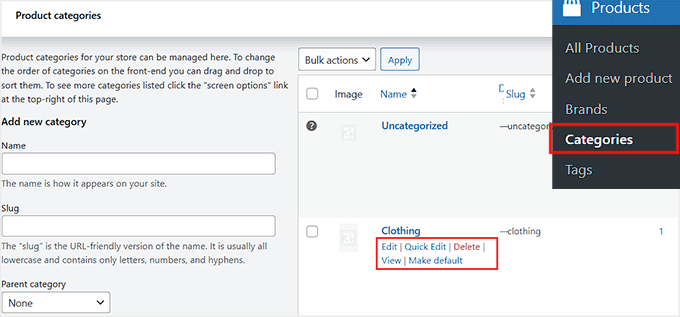
To do this, go to the Product » Categories page in your WordPress dashboard and click the ‘Edit’ link under any category.
This will open a new screen where you can add or update the category description.
Once that’s done, scroll down to the ‘AIOSEO Settings’ box, where you can configure the SEO settings for the category page.
Here, you’ll be able to optimize key elements such as:
- Category Title: You can use smart tags to build dynamic titles. AIOSEO also lets you click ‘View All Tags’ to insert variables into your title. You’ll see options like site title, separators, and category name to structure it properly.
- Meta Description: This is where you write a short summary of the category page. You can also use dynamic tags like ‘Category Description’ to automatically pull in information.
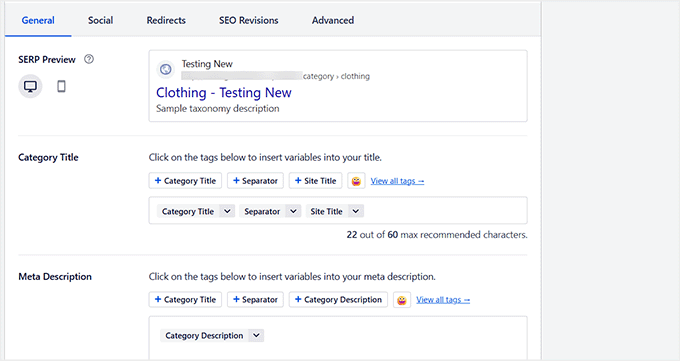
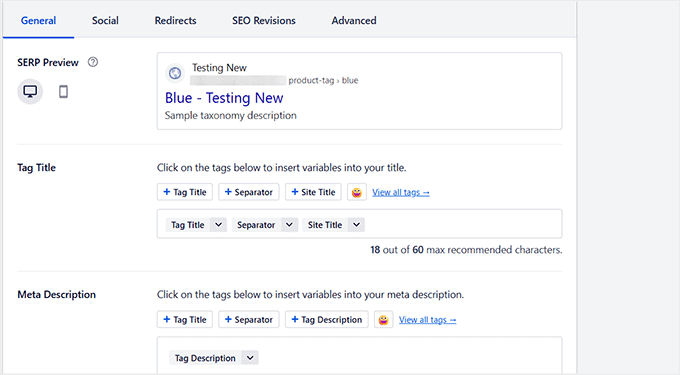
The same SEO settings are also available for product tags, so you can apply similar optimizations there as well. Just go to the Product » Tags page and repeat the process.
For more detailed guidance, you can check our article on categories vs tags – SEO best practices for sorting your content.
Step 7: Add Internal Links Between Products
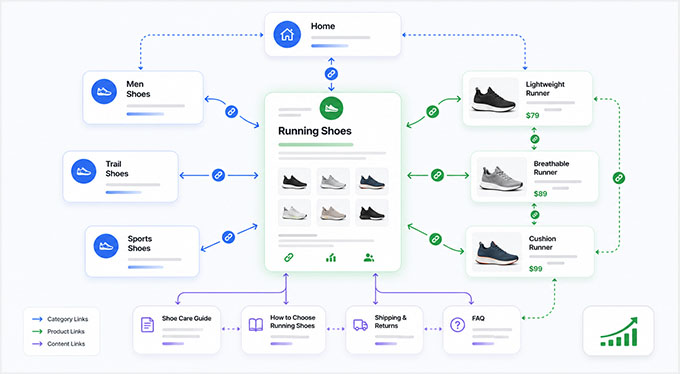
Internal links help search engines understand the structure of your WooCommerce store and discover more of your product pages.
At the same time, they improve user experience by guiding shoppers to relevant products instead of leaving them after viewing just one page.
In many stores, even a small improvement in internal linking can lead to better rankings and noticeably higher conversions.
How to Add Internal Links in WooCommerce
Here are the main ways you can add internal links inside your WooCommerce store, along with simple examples:
| Method | How It Works | Example | Why It Helps |
|---|---|---|---|
| Upsells | Suggest a better or upgraded version of the same product on the product page | ‘Premium Running Shoes’ shown under a basic shoe listing | Encourages users to upgrade and increases average order value |
| Cross-sells | Recommend related or complementary products in the cart | ‘Sports Socks’ suggested when adding running shoes to cart | Increases total cart value at checkout |
| Related Products | Automatically or manually display similar products based on category or tags | Showing ‘Men’s Running Shoes’ under a shoe product | Helps users discover more relevant items |
| In-description links | Add natural links inside product descriptions pointing to other products | Linking ‘running gear collection’ inside a shoe description | Improves SEO and keeps users browsing your store |
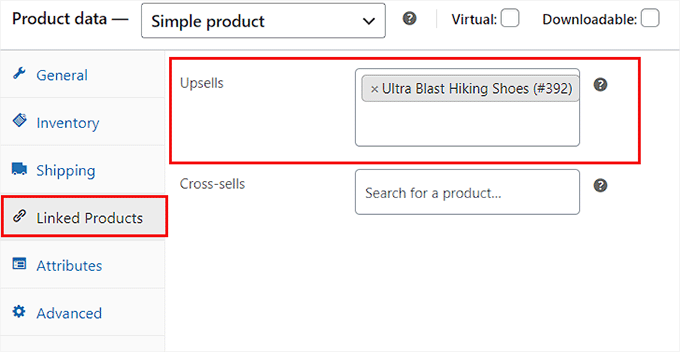
You can set these up directly in the WooCommerce product editor. Go to the ‘Product data’ section and click on the ‘Linked Products’ tab.
Here, you can search for and select specific products to feature as upsells or cross-sells for the item you are editing.
If you want to take this further, I suggest checking out our following articles:
Common Mistakes to Avoid When Internal Linking WooCommerce Products
Internal linking is powerful, but it only works well when done correctly. Here are a few common mistakes store owners make:
- Not Updating Links When Products Change or Get Removed: Broken or outdated internal links can hurt both SEO and user experience. So, it’s important to review them regularly.
- Overloading Product Pages with Too Many Links: Adding too many internal links inside a single product description can feel spammy and distract users instead of helping them.
- Linking Unrelated Products: Internal links should always feel natural and relevant. For example, linking running shoes to kitchen appliances doesn’t make sense and can confuse both users and search engines.
- Using Generic Anchor Text Like ‘Click Here’: Instead, use descriptive anchor text like ‘men’s running shoes’ or ‘winter sports collection’ so search engines understand the context.
For more tips and tricks, see our list of best SEO practices for internal linking.
Step 8: Use Customer Reviews to Boost Product SEO
Customer reviews are one of the easiest ways to keep your product pages working for you long after you publish them.
Every review adds fresh, keyword-rich content to the page over time, which helps search engines see that the product is still relevant. Reviews also build trust with shoppers, so more visitors feel confident enough to buy.
For more ideas, see our guide on how to encourage more customer reviews.
I also highly recommend using Smash Balloon Reviews Feed to display customer reviews on your website. It automatically pulls testimonials from external platforms like Trustpilot, Google, and Yelp, as well as your WooCommerce store.
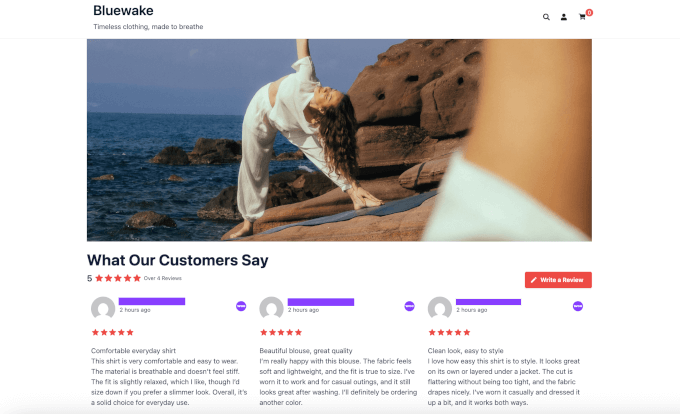
For details, see our guide on how to display WooCommerce reviews in WordPress.
Step 9: Optimize Product Pages for Speed and Mobile
A slow product page can cost you sales, even when everything else is set up well. If a page takes too long to load on a phone, then many shoppers leave before they ever see your product.
Google also looks at page experience as part of how it ranks pages. It is a smaller, tiebreaker-style signal rather than a major one. But when two product pages are otherwise similar, the faster, more mobile-friendly page tends to win.
Google measures this with three Core Web Vitals: how quickly the main content loads (Largest Contentful Paint), how fast the page responds when someone taps or clicks (Interaction to Next Paint), and how stable the layout stays while it loads (Cumulative Layout Shift).
You don’t need to memorize those terms. The good news is that a few beginner-friendly steps cover most of what they measure.
- Use a Caching Plugin: Caching saves a ready-made version of your pages so they load faster for visitors. This is one of the easiest ways to speed up a WooCommerce store.
- Choose Fast, Quality Hosting: Your host has a big impact on load times. A slow, low-quality server will hold your pages back no matter how well you optimize everything else. See our pick of the best WooCommerce hosting for recommendations.
- Pick a Lightweight Theme: Some themes add a lot of extra code that slows pages down. A simple, well-coded theme gives your store a faster starting point. For options, see our pick of the fastest WooCommerce themes.
For a deeper walkthrough, see our guide on how to speed up your WooCommerce store.
Step 10: Track Your WooCommerce SEO Performance
Once you have optimized your product pages for SEO, it’s equally important to track how those changes are performing.
This is the only way to know whether your optimizations are actually driving more traffic, clicks, and sales, or if something still needs improvement.
Set Up Tracking with MonsterInsights
To make this easier, I recommend using MonsterInsights, which is the best Google Analytics plugin for WordPress.
It connects your WooCommerce store with Google Analytics and shows your most important eCommerce data directly inside your WordPress dashboard.
We use MonsterInsights at WPBeginner because it simplifies analytics and makes it easy to understand what’s happening on our sites without digging through complex reports.
You can learn more in our detailed MonsterInsights review.
Key Metrics You Should Track
Once you have set up Google Analytics with MonsterInsights, here are the most important metrics to focus on:
- Organic Traffic: This shows how many visitors are coming to your store from search engines like Google. An increase here usually means your SEO improvements are working.
- Search Clicks and Impressions: This helps you understand how often your product pages are appearing in search results and how many users are actually clicking through.
- Product Conversions: This is the most important metric for any WooCommerce store. It tells you how many visitors are turning into paying customers after landing on your product pages.
Tracking these metrics over time gives you a clear picture of your SEO progress. Instead of guessing, you can make data-driven decisions to improve your product pages and increase sales.
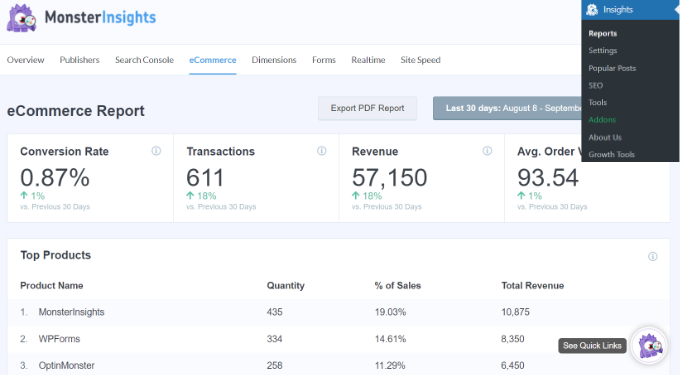
To properly measure this, follow our guide on WooCommerce conversion tracking.
How SEO Differs by Product Type
Keep in mind that different product types need slightly different SEO approaches depending on how customers search for them and how they interact with your store.
Once you understand these differences, it becomes much easier to fine-tune your product pages for better rankings and conversions.
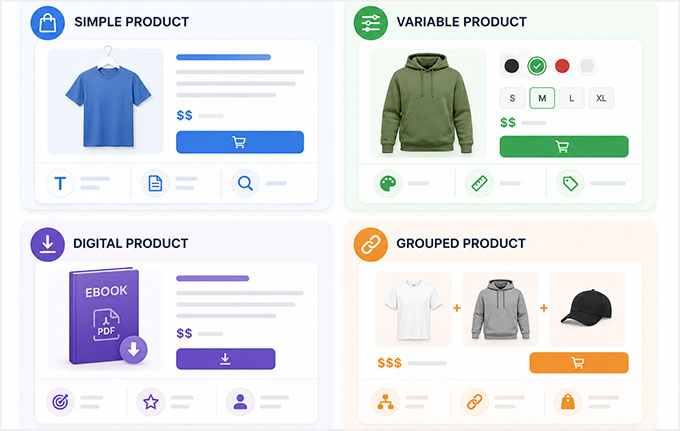
Simple Products
Simple products are the easiest to optimize because they have just one version with no variations.
For these products, your main focus should be:
- Writing strong, keyword-rich product titles
- Creating clear and helpful product descriptions
- Using relevant keywords naturally in your content
Since there are no variations, the goal here is to make the product page as clear and descriptive as possible so search engines fully understand what you’re selling.
Variable Products
Variable products (like size or color options) need a bit more attention because each variation can influence how users search.
For example, someone might search for “black running shoes size 10” or “red cotton t-shirt medium”.
In WooCommerce, you can optimize these variations by:
- Setting clear attributes such as size, color, material, or style
- Using those attributes in your SEO strategy (especially in titles and descriptions where relevant)
- Ensuring variation names are consistent and descriptive
- Uploading a unique, optimized image for every variation (e.g., a specific photo for the red shirt, and another for the blue shirt)
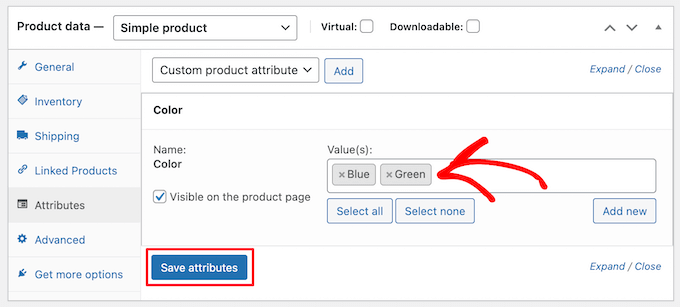
Inside your product editor, go to the ‘Attributes’ and set variations for your product. This is where you define options like size and color.
Once set, these attributes can also be used in your SEO titles if you’re using AIOSEO smart tags.
Digital Products
Digital products (like eBooks, plugins, courses, or downloads) require a slightly different SEO approach because users are often searching based on intent rather than physical features.
Instead of focusing on size or material, you should focus on:
- What problem the product solves
- What users can achieve with it
- Specific use cases (for example, “SEO checklist template” or “WordPress speed optimization guide”)
The goal is to clearly communicate value and outcomes, not physical characteristics.
Grouped Products
Grouped products combine multiple related items into one product page. For SEO, this gives you a strong opportunity to build internal links and improve product discovery.
To optimize grouped products:
- Make sure each individual product in the group is fully optimized
- Use internal linking between grouped items where relevant
- Highlight how products work together as a collection
This helps both users and search engines understand the relationship between products and improves overall visibility.
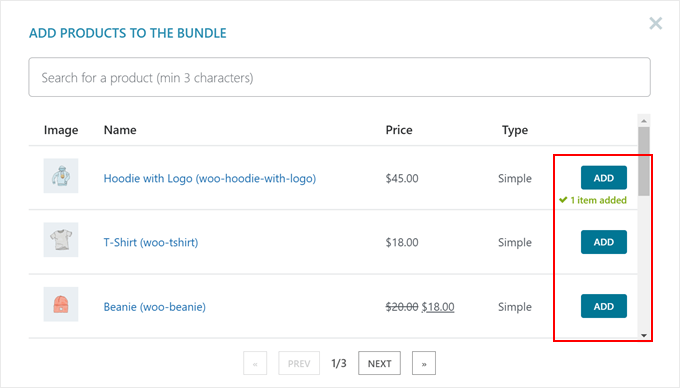
By adjusting your SEO approach based on product type, you make your WooCommerce store more structured, more relevant to search intent, and ultimately more effective at driving sales.
Bonus: How to Turn SEO Traffic Into More Sales
Getting SEO traffic is only half the job. Once visitors land on your WooCommerce store, the real challenge is turning that traffic into actual customers.
This is where conversion optimization becomes just as important as SEO. Even small improvements in your store experience can make a big difference in how many visitors end up buying your products.
One tool that helps with this is FunnelKit. It’s designed specifically for WooCommerce stores and focuses on improving the entire buying journey so you don’t lose customers after they click through from search engines.
With FunnelKit, you can optimize key parts of your store that directly impact conversions.
For example, it lets you create smoother checkout experiences, add order bumps to increase average order value, and build upsell flows that recommend relevant products at the right time.
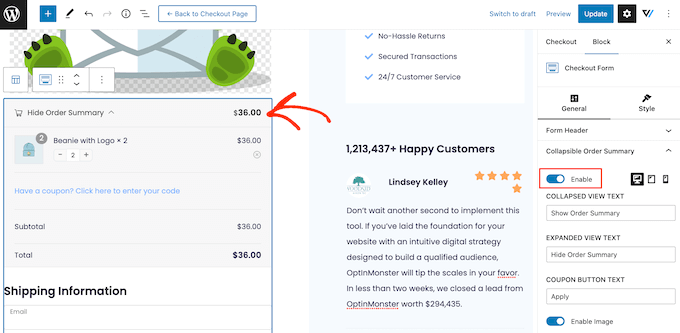
Instead of sending traffic straight to a standard checkout, FunnelKit helps guide users through a more optimized purchasing journey that reduces friction and increases sales.
If you want to go deeper, you can follow our guide on conversion rate optimization for more practical, step-by-step strategies.
More Best Practices for WooCommerce Product SEO
To get the best long-term results from your WooCommerce SEO efforts, it’s important to stay consistent with a few simple best practices:
- Keep Your Product Content Updated Regularly: I recommend reviewing your product pages from time to time to make sure pricing, availability, and descriptions are still accurate. Fresh and updated content tends to perform better in search results.
- Avoid Using Duplicate Product Descriptions: Try not to reuse the same description across multiple products. This includes copying manufacturer descriptions. Since many other stores use that exact same text, writing your own unique description helps you stand out to Google.
- Always Write With User Intent in Mind: I suggest focusing on what the customer is actually looking for when they land on your page. Think about their problem, their goal, and how your product solves it, rather than just stuffing keywords.
These small improvements can make a big difference over time, especially when combined with the optimization steps covered earlier in this guide.
Frequently Asked Questions About Optimizing Product Pages for Search Engines
If you still have questions about optimizing WooCommerce product pages for SEO, you’re not alone.
Here are some of the most common questions store owners ask, along with simple answers to help you get things right.
How do I optimize WooCommerce product pages for SEO?
To optimize WooCommerce product pages for SEO, you should improve your product titles, write helpful descriptions, add product schema, optimize images with alt text, and use internal linking between related products.
Using an SEO plugin like AIOSEO can make this process easier without needing technical skills.
Why are my WooCommerce products not ranking?
WooCommerce products often don’t rank because of weak SEO signals like thin descriptions, poorly optimized titles, missing schema, or lack of internal links.
In some cases, search engines simply don’t have enough context to understand the page or match it with relevant search queries.
Do I need a plugin for WooCommerce SEO?
Yes, using a plugin for WooCommerce SEO is highly recommended. An SEO plugin like AIOSEO helps you manage titles, meta descriptions, schema, and other technical SEO settings without manual coding.
This makes it super easy to optimize your store properly.
Can I do WooCommerce SEO without coding?
Yes, you can do WooCommerce SEO without coding. You can handle most optimization tasks — like editing product titles, adding descriptions, setting up schema, and optimizing images — directly inside WordPress using an SEO plugin like AIOSEO.
I hope this article helped you learn how to optimize your product pages for search engines. You may also like to see our guide on how to sell on ChatGPT with WooCommerce and our list of ways to use AI in WooCommerce.
If you liked this article, then please subscribe to our YouTube Channel for WordPress video tutorials. You can also find us on Twitter and Facebook.